How to Get Started
👤 Who this is for: People who just got their account and are about to log in for the first time
⏱️ Reading time: About 4 minutes
💡 In one sentence: Get your account → log in to YingCore → download the YingClaw desktop client → start giving tasks in plain language. That's it.
Step 0: Make sure you have what you need
Before you start, confirm you have these three things:
| What you need | Where to get it |
|---|---|
| ✅ Login account (email + password) | Your company's IT or operations team |
| ✅ Computer (Windows / macOS / Linux all work) | Your own |
| ✅ Network (can reach the YingCore platform) | Provided by your company |
💡 If you don't have an account yet: Ask your company's YingClaw technical contact and tell them "I need an account". Accounts are created by your administrator — no self-registration required.
Step 1: Log in to YingCore
Open the YingCore login page (ask IT for the URL), enter the email and password assigned by your administrator, and click Log in.
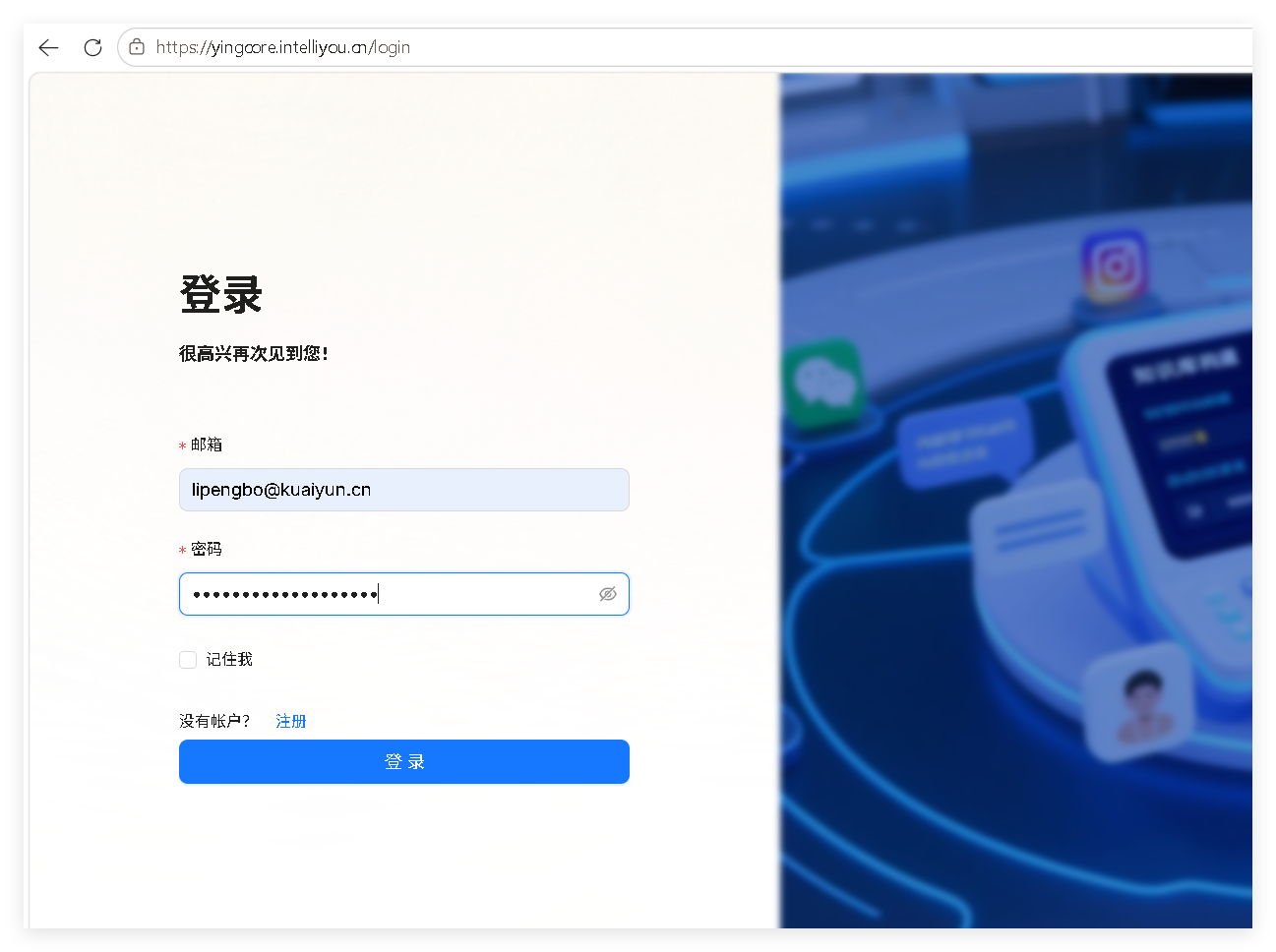
💡 YingCore is the web management platform. After logging in, you can download the YingClaw desktop client, view your account info, and more. YingClaw is the desktop client (your digital worker). It does not require an account or password to start — just open it.
Step 2: Download the YingClaw Desktop Client
After logging in, you'll land on the Dashboard page. Find the YingClaw Download button in the top-right corner and click it.
| Platform | Version |
|---|---|
| Windows | Windows x86_64 |
| macOS | macOS arm64 |
| Linux | Linux x86_64 |
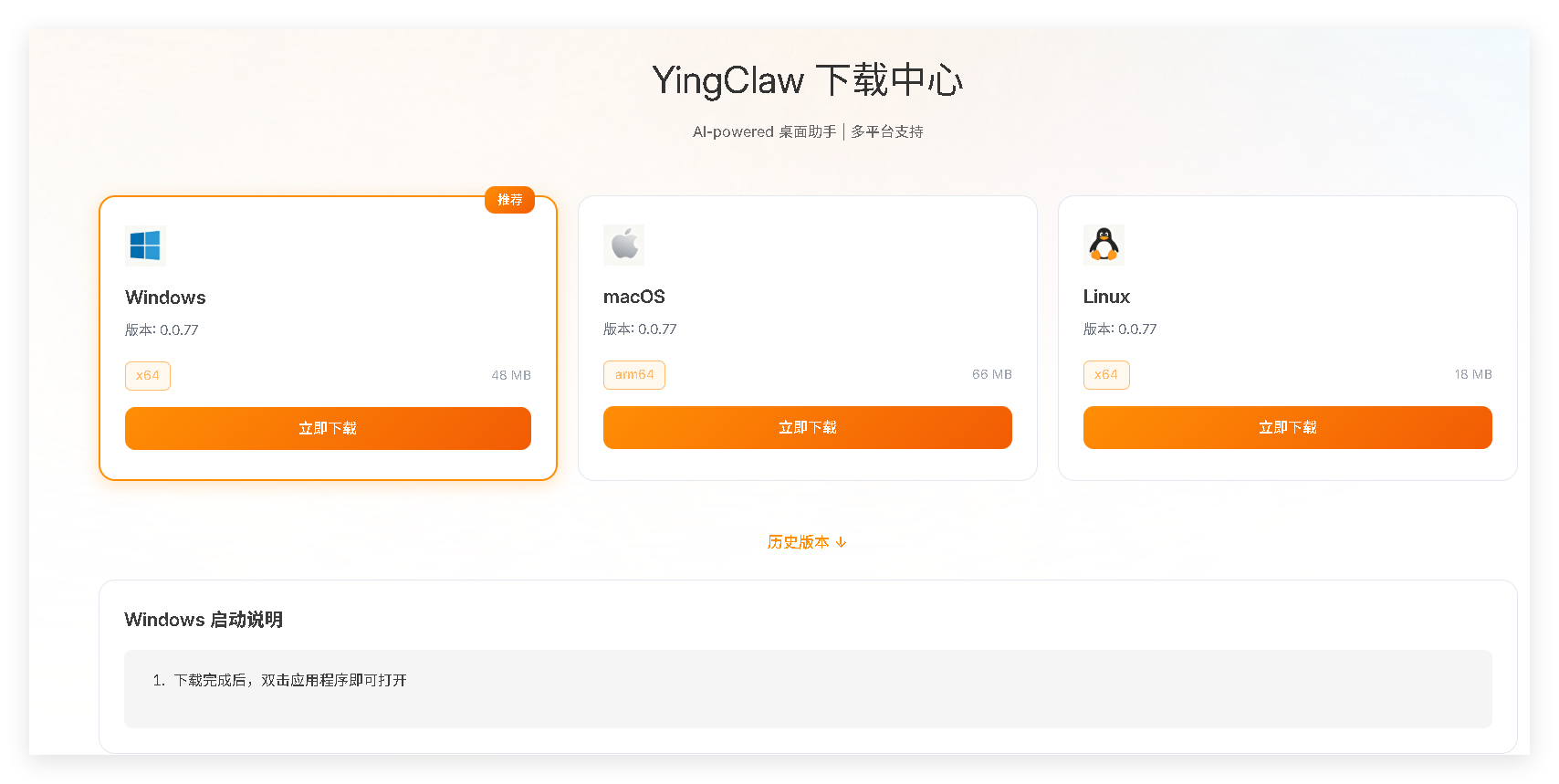
After downloading, double-click the installer and follow the prompts:
- Windows: Double-click the
.exefile and proceed through the wizard. - macOS: Drag YingClaw from the
.dmginto the Applications folder. - Linux: Extract the archive, grant execute permission, and run.
Step 3: Launch YingClaw and Open the Chat Interface
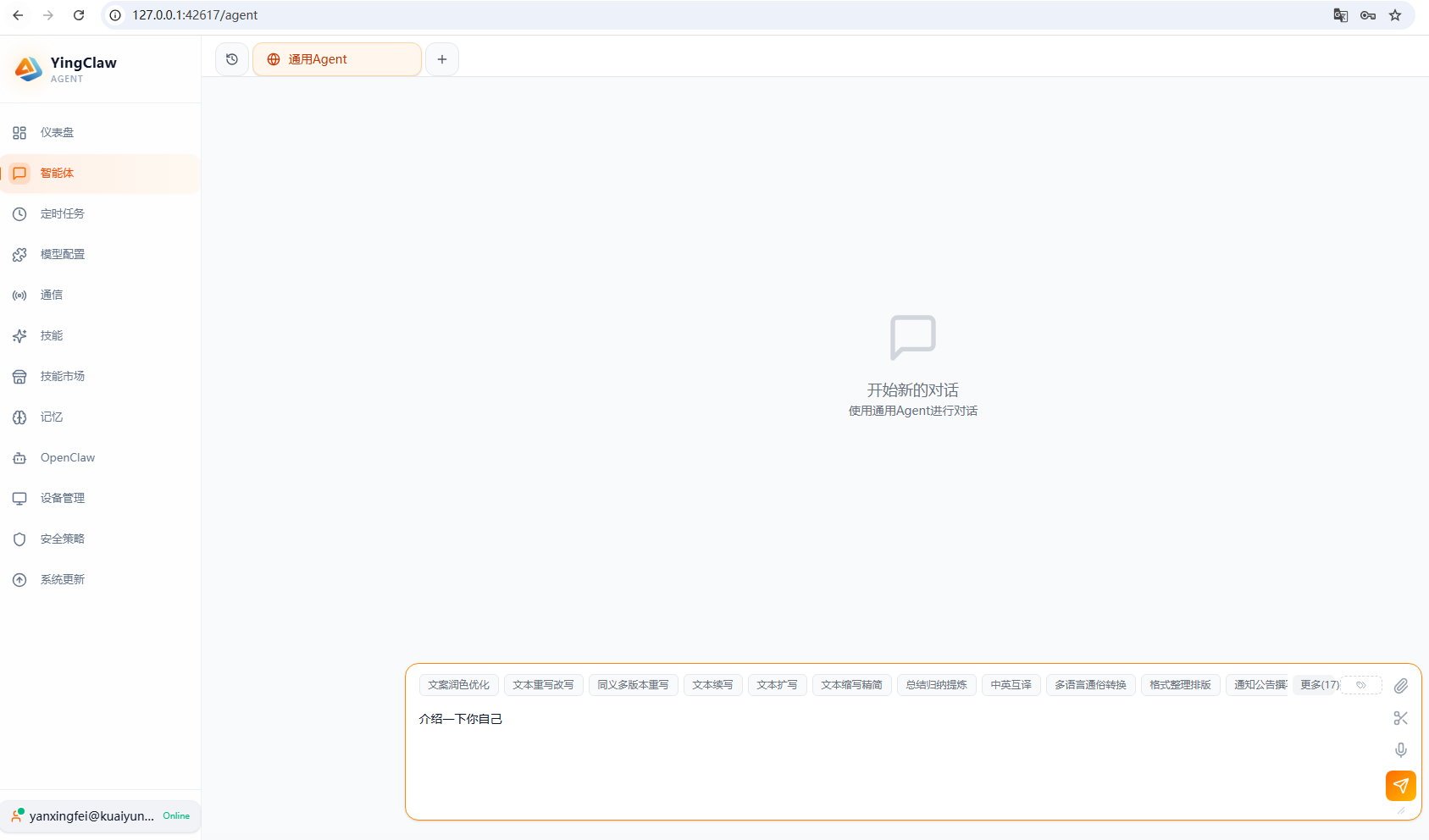
After installation, double-click the YingClaw icon to launch it. No account or password is required — the desktop client opens directly to the main UI.
You'll see a chat-like interface:
- Left: Your previous conversations (empty on first launch)
- Center: The chat area where you talk to YingClaw
- Bottom: The input box where you type your tasks
Step 4: Give Your First Task
In the input box, type what you want YingClaw to do in plain language and press Enter.
What does a good task look like?
✅ Specific: Clearly state what to do, on what, and where to put the result.
"Sort this Excel spreadsheet on my desktop by customer name, and save the result as a new file called 'sorted.xlsx'."
❌ Bad: Too vague.
"Organize my files." (Which files? How? Where?)
Here are three simple tasks you can try right now:
- "Tell me what files are on my desktop."
- "Search for today's weather in Shanghai."
- "Translate this sentence into English: YingClaw is a very useful digital worker."
Step 5: Watch How It Works
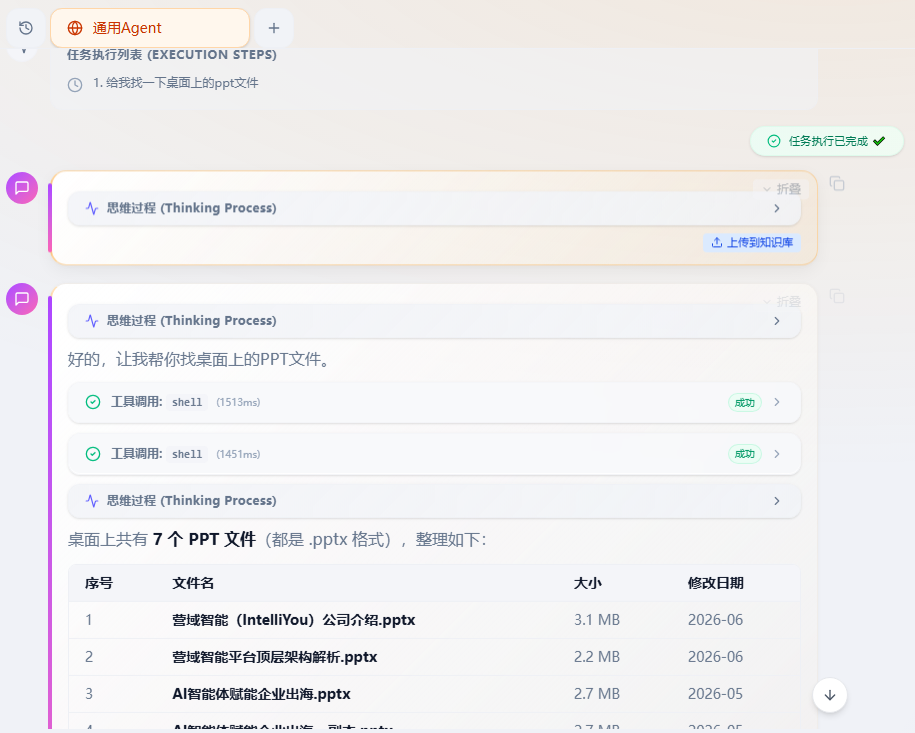
After you give a task, YingClaw will:
- Tell you what it plans to do (e.g., "I'll open Excel first, then read the data...")
- Execute step by step, with each step visible to you
- Give you a summary when done, explaining the result
If you feel it's going off track mid-way, interrupt and tell it "do it a different way".
Step 6: Let It Remember Your Preferences (Optional)
After using it for a while, you'll find your own habits. Just tell YingClaw directly:
- "Always use our company template when sorting spreadsheets. The template is in the 'Templates' folder on the desktop."
- "When replying to customer emails, the signature is always 'John Smith / Sales'."
- "Remind me to write the weekly report every Friday at 4 PM."
It will remember and follow these automatically next time.
Common Newbie Pitfalls
-
Tasks too big, not broken into steps
- ❌ "Organize the entire company's customer data."
- ✅ "First, list all new customers from Sales in 2024."
-
Not telling it where to put the result
- ❌ "Make a sales report."
- ✅ "Make a sales report and save it to the desktop as 'June 2026 Report.xlsx'."
-
Assuming it can guess your intent
- It doesn't know which "yesterday's file" you mean — be specific about the filename.
-
Thinking you need to register an account
- YingClaw is invitation-only. Accounts are created by your administrator — new users do not need to self-register.
Stuck? Try This
| Problem | What to do |
|---|---|
| Can't log in to YingCore | Ask IT to reset your password |
| YingClaw installation fails | See Common Questions or ask IT for help |
| It made a mistake | Just tell it "wrong, it should be XXX" and it will fix it |
| It says it can't do something | See Common Questions or ask IT to add the skill |
| Want to use more features | Just ask it "what else can you do?" and it will tell you |
Next Steps
- ❓ Common Questions — Data security? Shared accounts?
- 💪 What Can It Do — Think of more tasks to delegate